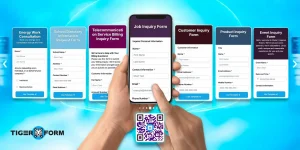


A team is preparing for an event, but the setup checklist is split across a spreadsheet, a printed sheet, and messages in the group chat. No one is sure which tasks are complete or what still needs attention.
A free checklist maker can bring those steps into one place. The choice comes down to what you need: a simple task list, a shared project checklist, or an online form that collects completed responses.
Below, we compare seven free checklist makers, look at their features and free-plan limits, and see which one suits your work.
TL;DR: The best free checklist makers
- TIGER FORM: Best for online checklist forms that people can complete using a QR code.
- Jotform: A good choice for checklist forms with ready-made templates and advanced fields.
- Google Forms: Best for simple checklists that send responses to Google Sheets.
- Mitti (formerly SafetyCulture): Designed for inspections, audits, and frontline teams.
- Todoist: Useful for personal tasks and recurring to-do lists.
- Trello: Works well for team projects with several steps and people involved.
- Notion: Best for checklists that need to live alongside instructions and documentation.
What is a free checklist maker?
A free checklist maker is a tool that lets you create and use checklists without paying for a subscription. Depending on the platform, you can build a digital checklist form, organize everyday tasks, or manage a team’s project steps. Free plans may limit the number of forms, submissions, users, projects, or files you can store.
Most checklist makers fall into two main categories.
Form-based checklist makers collect a separate response each time someone completes a checklist. They’re useful for inspections, employee onboarding, equipment checks, and event preparation because you can review completed submissions later.
Task-based checklist makers help you organize and complete tasks on a list, board, or workspace. They’re better for personal routines, project planning, and shared team to-dos.
For example, a restaurant manager might use a form to collect a closing checklist at the end of every shift. A freelance designer, on the other hand, might use a task app to track the steps involved in launching a client’s website.
Both approaches help people follow a process, but they don’t do the same job. Choose a form-based tool when you need separate submissions to review later. Choose a task app when organizing and completing work is your main priority.
Why use an online checklist form instead of paper?
Paper checklists can work well when only one person needs them. Managing them becomes more difficult when several employees complete the same checks, records need to be reviewed, or the process changes regularly.
An online checklist form gives your team a shared version to work with. You can update the questions, share the form through a link or QR code, and review the responses digitally instead of sorting through stacks of paper.
Here’s how the two compare:
| Factor | Paper checklist | Online checklist form |
| Storage | Copies need to be filed manually | Responses can be stored digitally |
| Incomplete answers | Someone must check each sheet | Required fields can help prevent missing answers |
| Updates | Old copies may still be in use | Changes can be made to the shared form |
| Supporting evidence | Photos and documents may need separate storage | File uploads can keep evidence with a response |
| Reviewing results | Entries may need to be sorted manually | Responses can be searched, filtered, or exported, depending on the tool |
| Sharing | Copies need to be printed or handed out | Share a link or QR code |
| Completion records | Depends on the details recorded on paper | Forms can collect names, timestamps, or signatures when configured |
One thing to remember: digital records don’t automatically prove that work was completed correctly. Names, timestamps, signatures, and other details depend on the fields and settings you use.
7 free checklist makers compared and reviewed
The tools below cover different ways to create and manage checklists. Compare their main features and free-plan limits before deciding which one suits your workflow.
Pricing and free-plan allowances can change, so confirm the latest details on each provider’s website before signing up.
| Tool | Type | Best for | Main advantage | Free plan limit | Paid plans start at |
| TIGER FORM | Form-based | Inspections, onboarding, and event checklists | Built-in QR code sharing | 5 forms, 100 submissions/month, 100 fields/form, and 1,000 viewers/month. 100 MB storage, Includes QR code sharing. | $14/month (Starter, billed annually) |
| Jotform | Form-based | Checklist and inspection forms | Large template library | 5 forms, 100 submissions/month, 100 MB storage | $34/month (Bronze, billed annually) |
| Google Forms | Form-based | Simple internal checklists | Responses in Google Sheets | Free with a Google account | Google Workspace plans, if you need a paid business account |
| Mitti (formerly SafetyCulture) | Inspection-based | Safety audits and site inspections | Inspection-focused workflows | Up to 10 seats and 5 active inspection templates | $24/month (Premium, billed annually) |
| Todoist | Task app | Personal and recurring checklists | Recurring tasks and reminders | 5 personal projects, 3 filters, 5 MB file uploads | $7/month(Pro,) |
| Trello | Task app | Team projects | Visual boards and task tracking | 10 boards per Workspace, unlimited cards, up to 10 collaborators | $5/user/mo (Standard, billed annually) |
| Notion | Task app and workspace | Checklists with documentation | Tasks and instructions in one place | Unlimited blocks, 5 MB per file, up to 10 guests | $10/ member/ per month (Plus, monthly billing) |
1. TIGER FORM
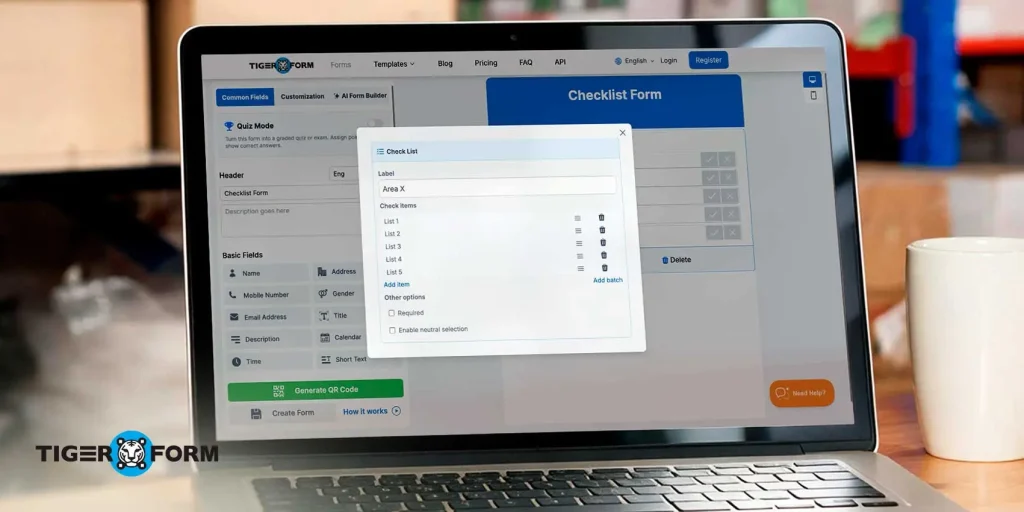
Best for: Online checklist forms that people can open through a QR code.
TIGER FORM is an AI-powered online form builder with a built-in QR code generator. It works well when staff need to open a checklist at a particular workstation or location and submit the completed form for later review.
Key features
- AI form creation: Generate a first draft of a checklist form from a text prompt, then review and edit the questions.
- Ready-made templates: Choose a checklist form template and customize its questions and fields to suit your specific needs.
- Drag-and-drop form builder: Add checkbox, yes/no, file upload, and signature fields to collect the information you need.
- Built-in QR code generator: Create a QR code that opens your checklist form.
- Dynamic QR codes: Update the destination of a dynamic QR code after printing, subject to the code’s configuration and plan.
- Response management: Review submitted checklists in one place and use available analytics to understand responses.
- Customization: Adjust the form’s appearance to match the form design to your brand.
| Plan | Price | What the plan includes |
| Freemium (free) | $0 | 5 forms, 100 submissions per month |
| Starter | $14/month, billed annually | 25 forms, 1,000 submissions per month |
| Business | $32/month, billed annually | 50 forms, 2,000 submissions per month |
| Professional | $113/month, billed annually | 130 forms, 6,000 submissions per month |
| Enterprise | Custom pricing |
TIGER FORM is worth considering when people need to complete forms at different locations. You can place QR codes at equipment stations, service counters, or event entrances to make the right checklist easy to access.
Our take: Choose TIGER FORM if you need more than a digital to-do list. Its combination of form creation and QR code sharing makes it useful for collecting completed checklists in one place. Its paid plans start at $14/month when billed annually, making it one of the more affordable options when you outgrow the free plan.
2. Jotform
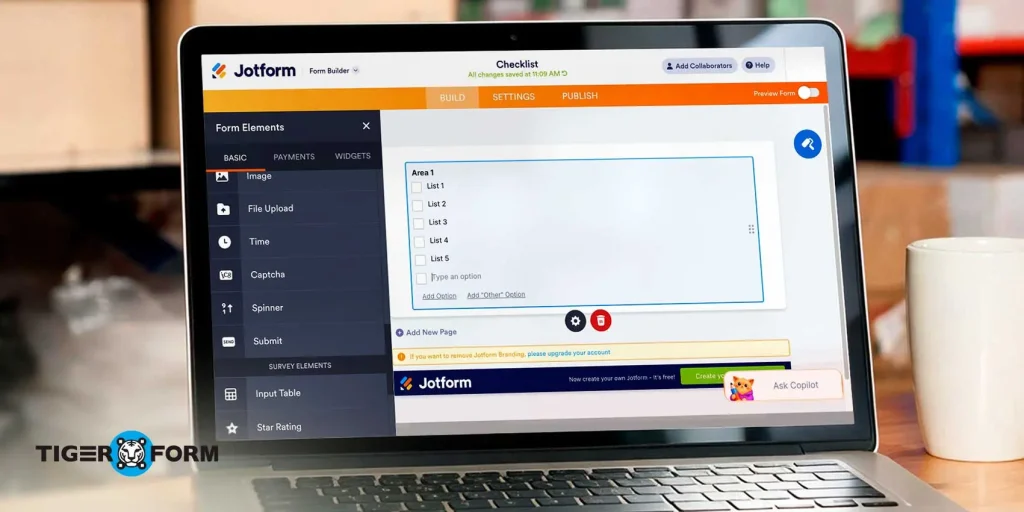
Best for: Checklist forms that need ready-made templates and additional form fields.
Jotform offers form templates that users can adapt instead of building a checklist from scratch, you can start with an existing checklist.
Key features
- Ready-made checklist and inspection form templates.
- Checkbox, file upload, and signature fields.
- Conditional logic for showing relevant follow-up questions.
- Integrations with other tools and services.
- Options for sharing forms and managing submissions.
| Plan | Price | What the plan includes |
| Starter (free) | $0 | 5 forms, 100 submissions per month, 100 MB upload storage |
| Bronze | $34/mo, billed annually | 1,000 submissions per month |
| Silver | $39/mo, billed annually | 2,500 submissions per month |
| Gold | $99/mo, billed annually | 10,000 submissions per month, plus HIPAA compliance features |
| Enterprise | Custom | Single sign-on, custom domains, enhanced security |
Jotform is a practical option if you already use it for other business forms and want to manage checklist forms in the same account.
Our take: Jotform is worth considering if you want a form-based checklist with templates and flexible fields. Check the submission allowance carefully if your team will use the form frequently.
3. Google Form
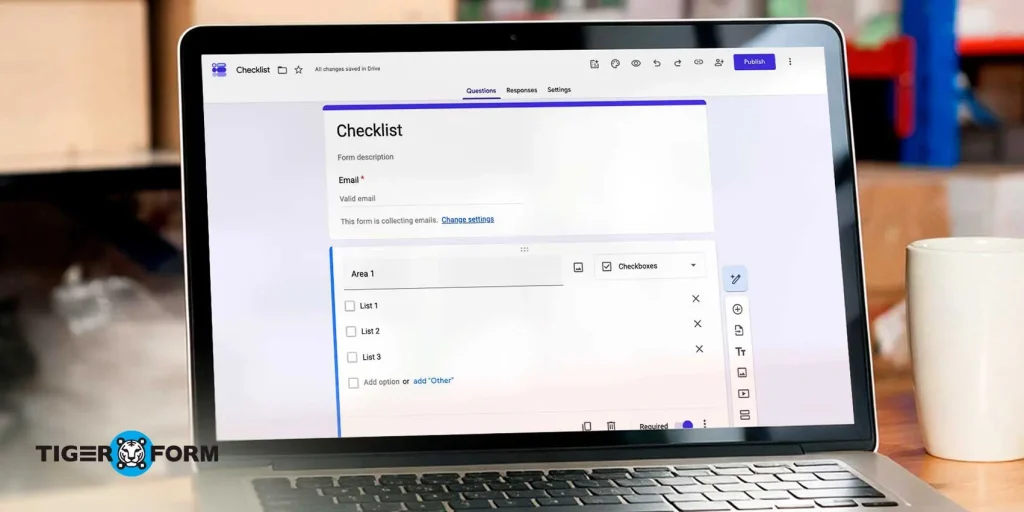
Best for: Simple checklists that send responses to Google Sheets.
Google Forms is a straightforward option for creating online checklists. If your team already uses Google Workspace, you can create a form, share it, and review the responses without learning a separate platform.
Key features
- Checkbox questions for listing tasks.
- Required questions to reduce incomplete responses.
- Responses that can be viewed in Google Forms or linked to Google Sheets.
- Collaboration with other users.
- Shareable forms that work on mobile devices.
| Plan | Price | What the plan includes |
| Free | $0 with a Google account | Forms and responses included |
| Google Workspace | Google Forms is included in Workspace plans, with admin controls for teams |
Google Forms is easy to get started with, but it has limitations for more specialized checklist workflows. Its customization and advanced form-management capabilities are more basic than those of some dedicated form builders.
It also doesn’t provide the same built-in dynamic QR code workflow described for TIGER FORM. If you want a QR code for a printed notice or workstation, you’ll need to create one separately.
Our take: Google Forms is a good starting point for simple internal checklists, especially when your team already works with Google Sheets. For inspections that need more specialized fields or a dedicated QR code workflow, compare it with other form builders.
4. Mitti (formerly SafetyCulture)
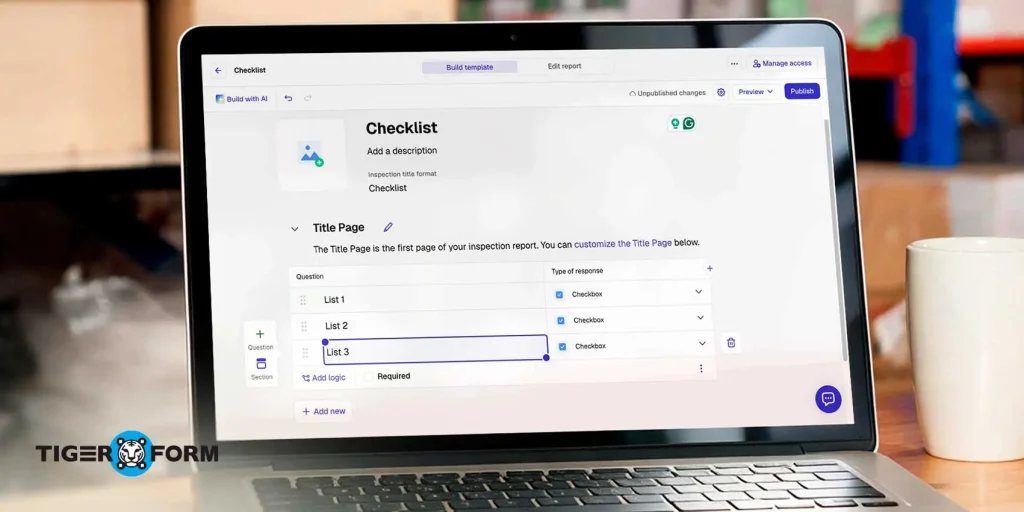
Best for: Workplace inspections, safety checks, and audit workflows.
Mitti, formerly known as SafetyCulture, focuses on workplace inspections and operational checks. Rather than serving only as a general checklist maker, it supports teams that need to carry out inspections and document the results.
Key features
- The platform provides Inspection form templates for recurring checks.
- Mobile-friendly inspection workflows.
- Reporting tools for completed inspections.
- Options for recording findings and documenting problems.
- AI-assisted features, subject to the available plan and usage limits.
| Plan | Price | What the plan includes |
| Free | $0 per seat | Up to 10 seats and 5 active inspection templates |
| Premium | $24/user/mo billed annually($29 billed monthly) | Higher limits and added features |
| Enterprise | Custom | Contact sales |
Mitti is more specialized than a basic checklist app. It’s useful when inspections are part of a formal workplace process, and the team needs to document findings.
However, a small business that only needs a short daily checklist may not need a dedicated inspection platform.
Our take: Consider Mitti when inspections and audit records are central to your workflow. For everyday task lists or simple checklist forms, a more general tool may be easier to manage.
5. Todoist
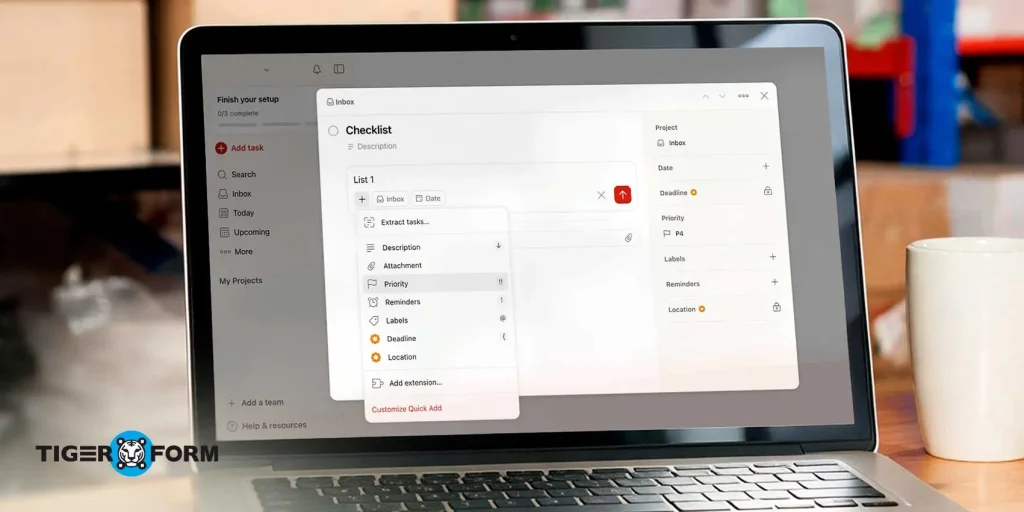
Best for: Personal checklists and recurring tasks.
Todoist is a task-management app for organizing work into projects, tasks, and subtasks. It’s a good fit for checklists you want to complete yourself or revisit regularly.
Key features
- Tasks and subtasks for breaking work into steps.
- Recurring due dates for routines and repeated tasks.
- Projects for organizing different checklists.
- Reminders and task notifications, depending on the plan.
- Filters for finding specific tasks.
| Plan | Price | What the plan includes |
| Beginner (free) | $0 | 5 personal projects, 3 filters, 5 MB file uploads, 1 week of activity history |
| Pro | $7/month, or $60 per year | 300 projects, 150 filters, 100 MB uploads, full reporting history, custom reminders |
| Business | $8/user/mo billed annually($10 billed monthly) | Shared team workspace, up to 500 team projects, roles and permissions |
Todoist is designed to track tasks as users mark them complete. That differs from a form-based checklist, which separates submission each time someone fills it out. If a supervisor needs a record of every employee’s inspection, check whether a task list provides the right recordkeeping.
Our take: Choose Todoist for personal routines, recurring reminders, and everyday work. If you need a formal record of each checklist completion, look at a form-based tool instead.
6. Trello
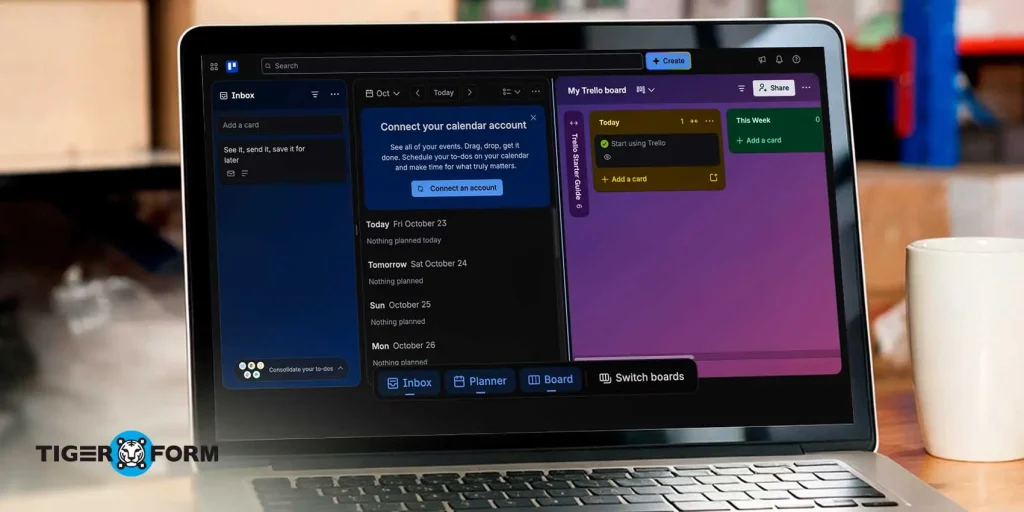
Best for: Team checklists that are part of larger projects.
Trello organizes work on visual boards. Each board contains lists and cards, and cards can include checklists that help teams break a project into smaller steps.
It’s useful when people need to see not only what has been completed, but also where a task stands in the wider workflow.
Key features
- Checklists inside task cards.
- Boards and lists for organizing work.
- Due dates and collaboration features.
- Automation options, subject to plan limits.
- Advanced checklist features on eligible paid plans.
| Plan | Price | What the plan includes |
| Free | $0 | Up to 10 boards per Workspace, unlimited cards, up to 10 collaborators, 10 MB per file |
| Standard | $5/user/mo billed annually($6 billed monthly) | Unlimited boards and advanced checklists |
| Premium | $10/user/mo billed annually ($ 12.50 billed monthly) | Calendar, Timeline, Table, and Dashboard views |
| Enterprise | $17.50 per user per month billed annually | Organization-wide permissions and admin controls |
Trello is particularly useful when several people are responsible for different parts of a project. However, it doesn’t function like a checklist form that collects a new submission after each inspection or shift.
Some advanced checklist features, such as assigning individual checklist items, may require a paid plan. Check the current plan details before relying on them.
Our take: Trello is a strong choice for team projects where checklists are part of a larger workflow. It isn’t the best fit if your main goal is to collect and store completed checklist forms.
7. Notion
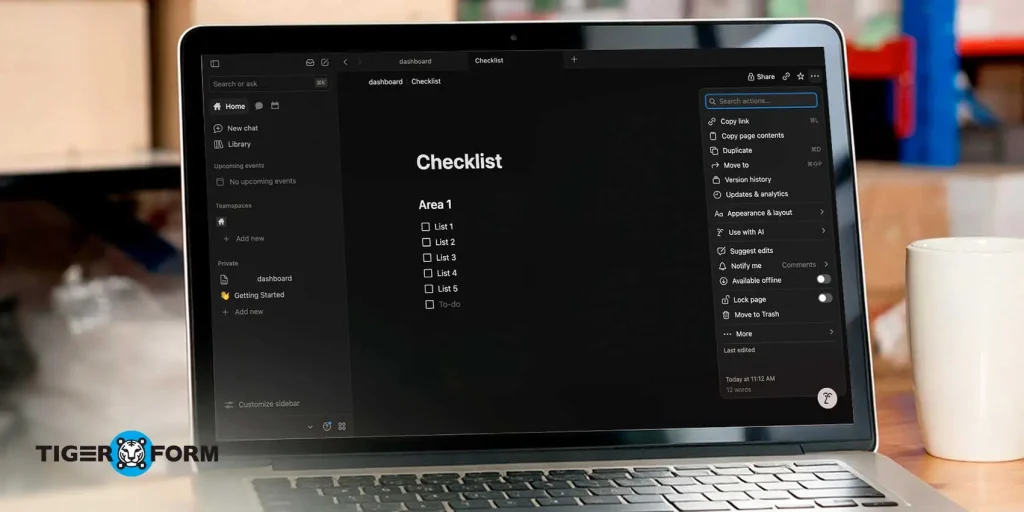
Best for: Checklists that need to sit alongside instructions, notes, and other documentation.
Notion combines documents, databases, and task-management features in one workspace. You can create a checklist on a page, add instructions above it, and save the page as a template for repeated use.
Key features
- To-do blocks for simple checklists.
- Templates for repeatable processes.
- Databases for tracking tasks and status.
- Pages that combine instructions and checklists.
- Shared workspaces for organizing team information.
| Plan | Price | What the plan includes |
| Free | $0 | Unlimited blocks for individuals, 5 MB per file, up to 10 guests, 7 days of page history |
| Plus | $10 per member per month (monthly billing) | Higher limits [ADD specifics] |
| Business | $20 per member per month (monthly billing) | Advanced team features [ADD specifics] |
| Enterprise | Custom | Contact sales |
Notion works well when the checklist needs context. Employees can read the instructions and follow the steps without switching between several documents.
The trade-off is that a standard Notion checklist isn’t the same as a form that collects a separate submission from each person. If you need a structured record of every completed checklist, make sure the workflow you design can capture that information.
Our take: Notion is useful for teams that want checklists and process documentation in the same place. For simple task tracking, it may be more than you need; for standalone checklist submissions, a form-based tool may be more suitable.
What types of checklists can you create?
The best checklist format depends on whether you need to collect a record of completed work or simply track progress.
| Checklist type | Example | Best format |
| Inspection checklist | A facilities manager checks fire extinguishers every week | Form-based |
| Onboarding checklist | An HR coordinator checks that new-hire paperwork is complete | Form-based |
| Event checklist | An organizer confirms that the venue is ready before guests arrive | Form-based, optionally shared by QR code |
| Opening and closing checklist | A café manager records the tasks completed at closing time | Form-based |
| Project checklist | A marketing team tracks the steps involved in a product launch | Task app |
| Personal checklist | A traveler prepares a packing list | Task app |
| Maintenance checklist | A technician records equipment checks and reports problems | Form-based |
| Content publishing checklist | A writer tracks editing, links, images, and final approval | Task app |
For inspections, onboarding, and maintenance, a form-based checklist is often the better choice because it can collect a separate response each time someone completes the process.
For personal routines and project planning, a task app is usually enough. You can tick off items, set reminders, and see what still needs to be done.
What checklist form fields should you look for?
A good checklist maker includes checkbox fields, required-field settings, file uploads, and timestamps, so every response is complete and verifiable. Check for these fields before you pick a tool.
- Checkbox field: lets people tick each completed item.
- Yes, No, and N/A options: record items that do not apply.
- Required fields: stop a submission when an item is blank.
- Photo or file upload: attaches proof, such as a photo of a damaged exit sign.
- Signature field: confirms who signed off.
- Date and time stamp: shows when the checklist was completed.
- Conditional logic: shows extra questions only when an item fails.
- Export and analytics: let you review responses in a spreadsheet or chart.

Tips for creating an effective checklist
An effective checklist is short, specific, and written in the order people complete the tasks. These tips apply to any checklist maker.
- Write one action per item “Check the exit sign” works; “Check signs and lights” does not.
- Start each item with a verb. Verbs make each item clear.
- Order items by workflow. Follow the path a person walks or the sequence they work through.
- Keep it short. Cut any item nobody checks or acts on.
- Test it with a real user. Ask one person to complete it and note where they hesitate.
- Assign an owner. Name the role that reviews responses and updates the checklist.
- Review it on a schedule. Update the checklist when the process changes.
FAQs
Which free checklist maker should you use?
Choose a form-based tool if you need a separate record of each completed checklist. TIGER FORM, Jotform, and Google Forms are options to consider. If you need to manage tasks rather than collect submissions, Todoist, Trello, and Notion may be a better fit.
Can you make a free online checklist?
Yes. You can create a free online checklist using a form generator or a task management app. The features available will depend on the tool and its free plan. Check the limits on forms, submissions, projects, file storage, and other features before choosing one.
How do you make a checklist that other people can fill out?
Create a checklist form with clear questions and checkbox fields. Add required fields where necessary, then share the form through a link or QR code. People can open it on their devices, complete the checklist, and submit their responses.
Is a checklist maker the same as a to-do list app?
Not exactly. A form-based checklist maker collects responses when someone submits a completed checklist. A to-do list app tracks tasks as people mark them complete. Use the first when you need a record of each completed process and the second when you need to organize work.
Can you print a free checklist or share it by QR code?
Many tools let you print a checklist or share it online. If you use a checklist form, you can also create a QR code that opens it, provided your tool supports that option or you use a separate QR code generator. Dynamic QR codes can allow the destination to be changed after printing, depending on the provider and code type.
Can you track who completed a checklist?
Yes, if your checklist tool collects the information needed to identify the person completing it. You can add a name, employee ID, or signature field and use submission timestamps where available. Keep in mind that a name field alone doesn’t verify someone’s identity.
What should a workplace inspection checklist include?
Include the items that need to be inspected, a clear response option for each item, and a way to report problems. Depending on the inspection, you may also need photo uploads, comments, a completion date, and a sign-off field. Make critical questions required where appropriate.
Are free checklist makers suitable for teams?
Yes, but check the free-plan limits first. Some tools limit the number of users, forms, submissions, projects, or active templates. Also check whether your team can share access and whether the tool provides the records and reporting features your process requires.
Which free checklist maker is right for you?
The best choice comes down to how your team uses a checklist and what you need to do with the results.
Before you decide, compare the free-plan limits with how often you’ll use the tool and check that it includes the fields and features you need. A checklist used occasionally has different requirements from one completed by an entire team every day.
Need a checklist your team can fill out on their phones? Sign up free and create your first checklist form.