

If you’re looking for ways on how to create registration forms online, the good news is that you don’t need technical or coding skills to get started. These days, with increased accessibility to digital tools, anyone can easily make an online registration form. No programming, no complicated setup.
It’s actually not as hard to create a registration form as you might think. The hard part is deciding what to put in and which tool you’ll use. That is why it can be useful to understand both the pattern and tools.
Today, we’re going to take you through how to create online registration forms step by step. We’ll also cover the main parts of a registration form, the best form tools to try, ready-made templates you can use, and practical tips to help you build one that’s clear and easy to complete.
What is an online registration form?
An online registration form is a type of digital document people use to sign up, join, or submit any relevant data online. Rather than using paper forms or laboring over manual spreadsheets, data is gathered through a web-based form that can be accessed via phones, tablets, or computers.
Practically speaking, it’s the thing someone fills in to register for an event, apply for a course, join a membership, or become a member or a customer. Once submitted, data is immediately saved in a database or dashboard, where you can view, manage, and export.
The online registrations count because they are friction-free. According to data shared by various UX research groups, simpler digital forms can significantly reduce drop-off rates compared to long, manual processes. When the form is easy to access and quick to complete, more people follow through.
What you need before building a registration form
Before opening a form creator, it helps to be clear about what information you actually need. This keeps your form focused and prevents unnecessary fields that slow people down.
Start with the form’s purpose. It pays to ask if you are collecting event sign-ups, service inquiries, or official registrations. This will serve as your starting point.
Main fields
- Full name: Shows who is registering and is important for records and follow-ups.
- Email address: Used to send confirmations, updates, and other messages.
- Phone number: Helpful for urgent updates or quick verification, especially for events or services.
- Registration type or category: A dropdown menu works well here (for example, attendee type, course level, or membership plan).
Fields by specific needs
- Date fields: For schedule details or availability.
- File uploads: For IDs, documents, or proof of payment.
- Consent checkboxes: For terms and privacy policies.
- Additional notes: For special requests or extra instructions.

How to create registration forms online in minutes
Today, making an online registration form is more about choosing the right tool than learning how to use it. Most of the time, the way that current form tools work is the same.
Here’s a quick and easy way to create registration forms using TIGER FORM as an example:
- 1. Sign up for a form tool
Create an account on TIGER FORM. After that, everything will be in one workspace on the dashboard. You don’t need to hunt through menus to get started.
- 2. Use templates
Pick a pre-built registration form template. You don’t have to start from scratch because templates come with standard fields. You can use them as-is or adjust them to match your process.
- 3. Use the AI form generator
The AI form generator feature can help you setup forms more quickly. If you type in a simple prompt such as “Create an online registration form for an event with attendee details and contact information,” the system will create a full form layout in just a few seconds. It’s a helpful way to get a solid structure up and running right away.
- 4. Refine the fields if needed
You can change the fields to fit your needs no matter if you’re using the template or the AI form g Check that each field is clearly labeled so users know exactly what to enter.
- 5. Generate the QR code to share
After you’ve checked your form, you can create a QR code for it. You can match the code to your brand by adding your logo, changing its look, and even ensuring seamless performance with the fastest VPN for secure and quick access. When you’re happy with it, you can share the QR code online or print it for walk-in registrations, ads, or on-site sign-ups.
- 6. Track submissions and scans
You can track submissions as they happen. Tools like TIGER FORM show you how many people submit or scan your form, and break it down by device and location. You can easily review and export this data, then follow up without dealing with paper forms or manual data entry.
5 best registration form builders worth trying

Not all form tools are the same. Each tool shines in different situations, depending on how you collect registrations, where people sign up, and what you need to do with the data after submission.
| Form tools | Best feature | Starter plan |
| Zapier forms | • Strong automation• Best for team projects | • Free plan• Pro: $29.99/month |
| Formaloo | • Organized form submissions• Dynamic forms | • Free plan• Pro: $24/month |
| TIGER FORM | • Built-in QR code generation• AI form generator | • Free plan • Starter: $14/month |
| Tally | • Notion-like builder• Generous features | • Free plan • Pro: $29/month |
| Visme Forms | • Notion-like UI• Best for marketing | • Free plan• Starter: $29/month |
1. Zapier Forms
Best for: Automated workflows, internal registrations, and operations teams
Zapier Forms is great when you need both data collection and automation. Since Zapier is built for automation, its forms trigger actions in your workflow as soon as someone submits. This means data moves instantly into your process, so you don’t have to enter it by hand.
More pros:
- Strong app integrations
- Automated workflow
- Multiple touchpoints registrations
2. Formaloo
Best for: Teams needing collaboration for handling detailed registrations
Formaloo is ideal for multiple-step registrations and ongoing management. Each submission becomes a structured record in your database, not just a simple list. Teams can track progress, update records, and organize registrations by category in real-time.
More pros:
- Visual table and board views
- Teams can manage and update registrant data together
- For multi-step registrations and internal workflows
3. TIGER FORM
Best for: Walk-in registration for events in schools and businesses
TIGER FORM makes registration quick and easy with QR code forms. Instead of typing long links or filling out paper forms, people scan a QR code and register instantly using their phone. It’s perfect for walk-in registrations, in-person events, and public sign-up forms at on-site stations. With this tool, teams can collect accurate data in real time without manual entry.
More pros:
- QR code generator within the form tool
- Mobile-friendly forms
- Best registration form templates for every signup need
- On-site to digital registration setups
4. Tally
Best for: Creators or teams looking for simple yet classy registration forms.
Tally is a good pick for online registrations because their forms are simple and quick to fill out. Its Notion-like design keeps distractions away, so users can focus on finishing the form. This helps improve your form completion rates, especially for public sign-ups.
You can also customize your forms without needing technical skills. This makes it easy to create registration flows that feel natural and easy for users.
More pros:
- Clean and simple form design
- Professional layouts without needing to code
- Conditional logic
- Generous free-tier
5. Visme Forms
Visme Forms works best when you want your registration to look polished and match your brand. It allows you to create visually polished forms that align with your brand identity. This can help build trust and make your registration feel more professional.
More pros:
- Strong design and branding customization
- Visually engaging layouts and animated characters
- Suitable for event registration management and marketing campaigns
10+ free online registration forms for every use

Medical registration forms
Let your patients experience faster, more efficient healthcare admissions—from initial patient concerns to insurance verification.


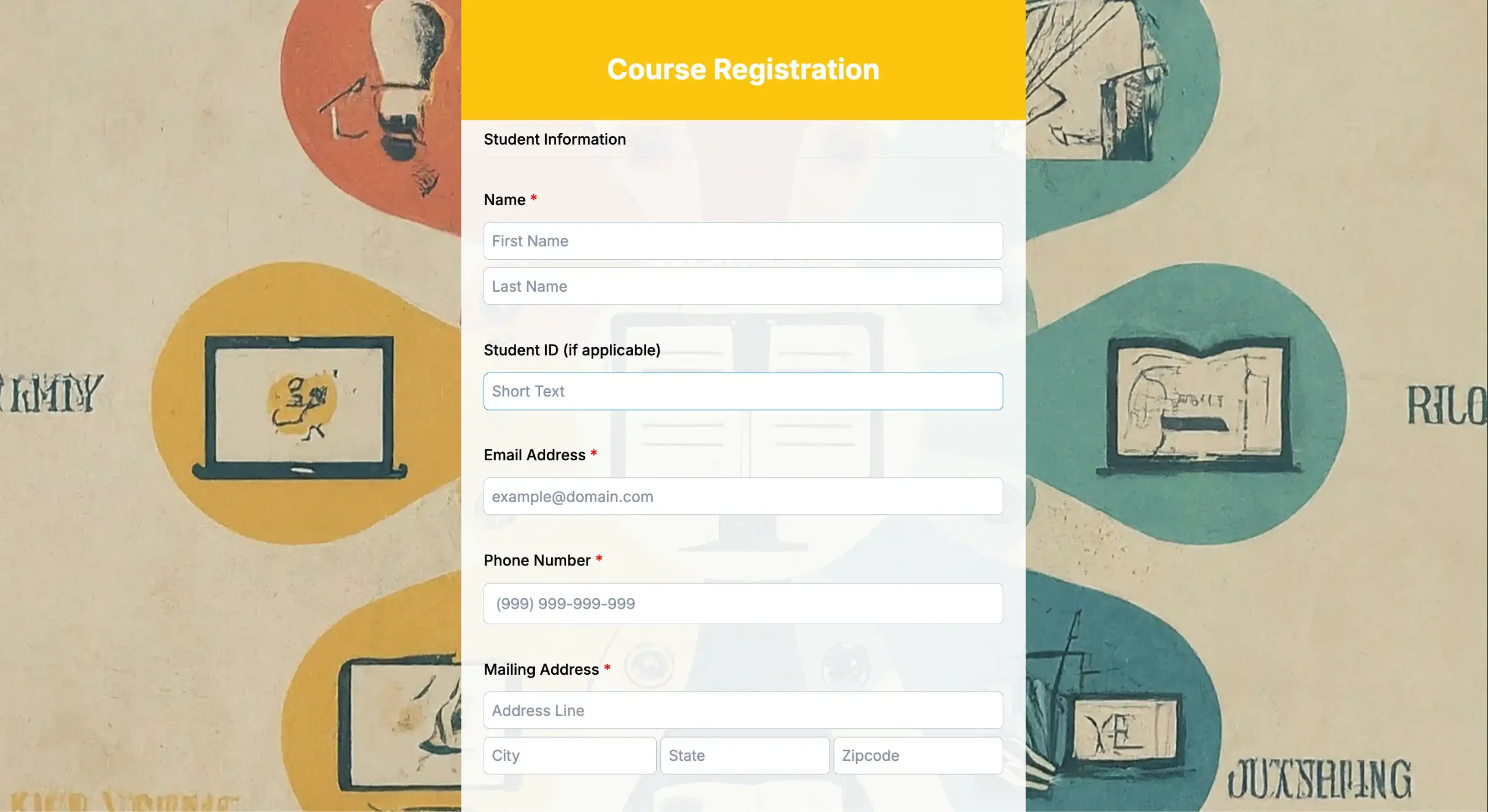
Educational registration forms
This centralized online enrollment form makes school registrations accessible to parents and students anywhere, anytime.
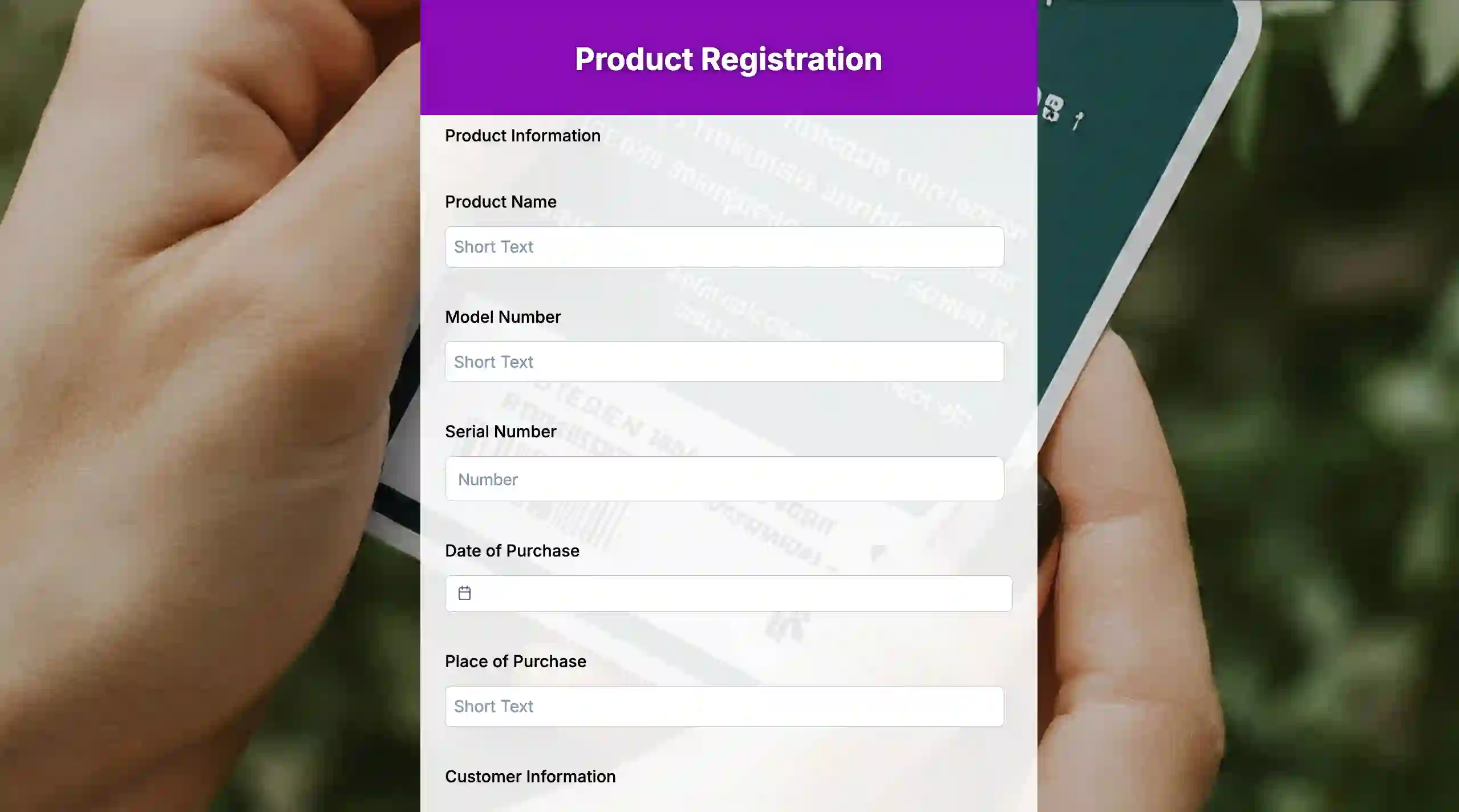

Business registration forms
Start entrepreneurship with this template. Gather all the business information needed and submit it securely.
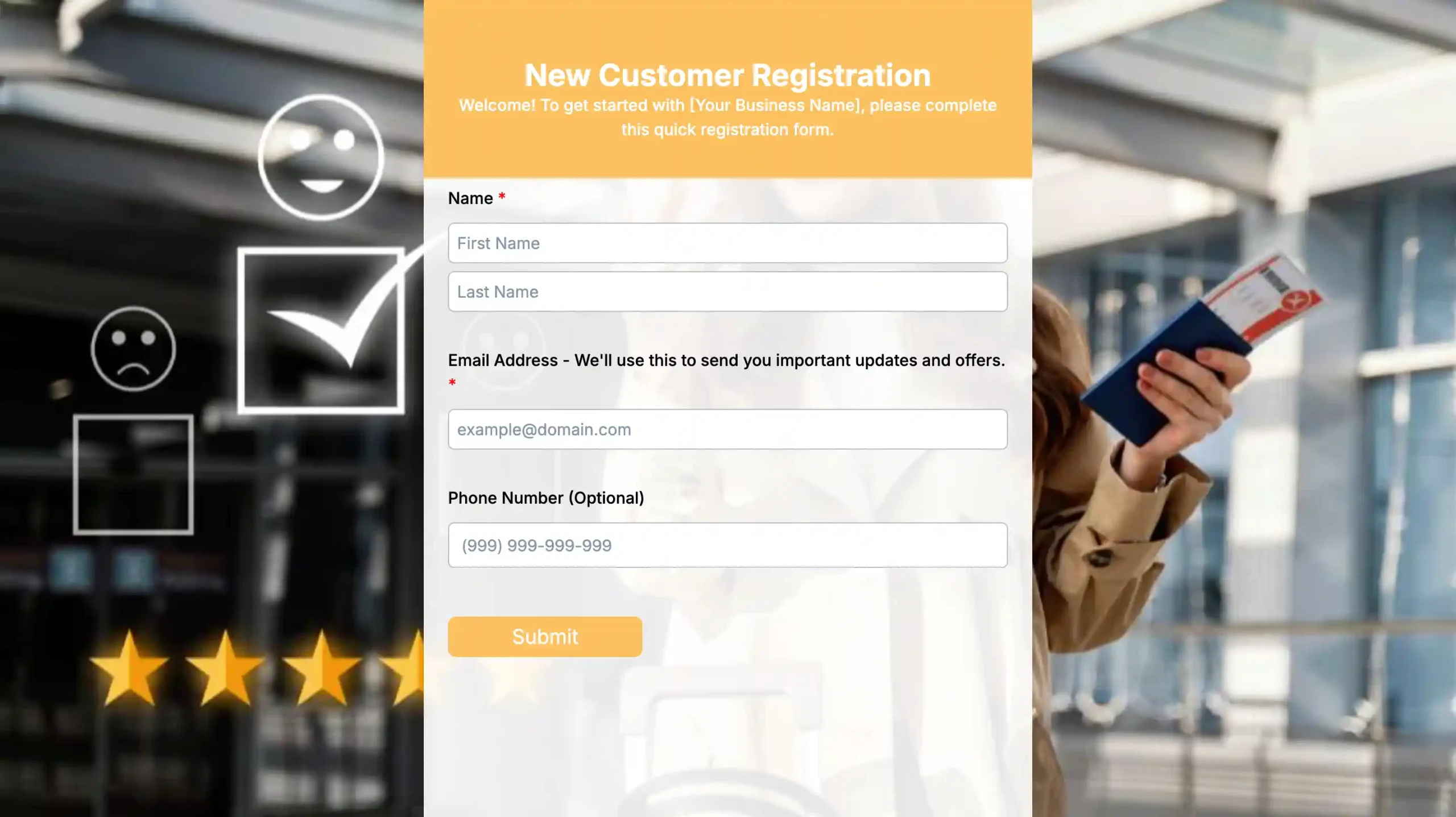
Customer registration forms
If you have first-time customers, this template helps you collect their information and manage their profiles more easily.

Patient registration forms
To have a unified way in onboarding and registering your patients, use this template to quickly gather new patient information.
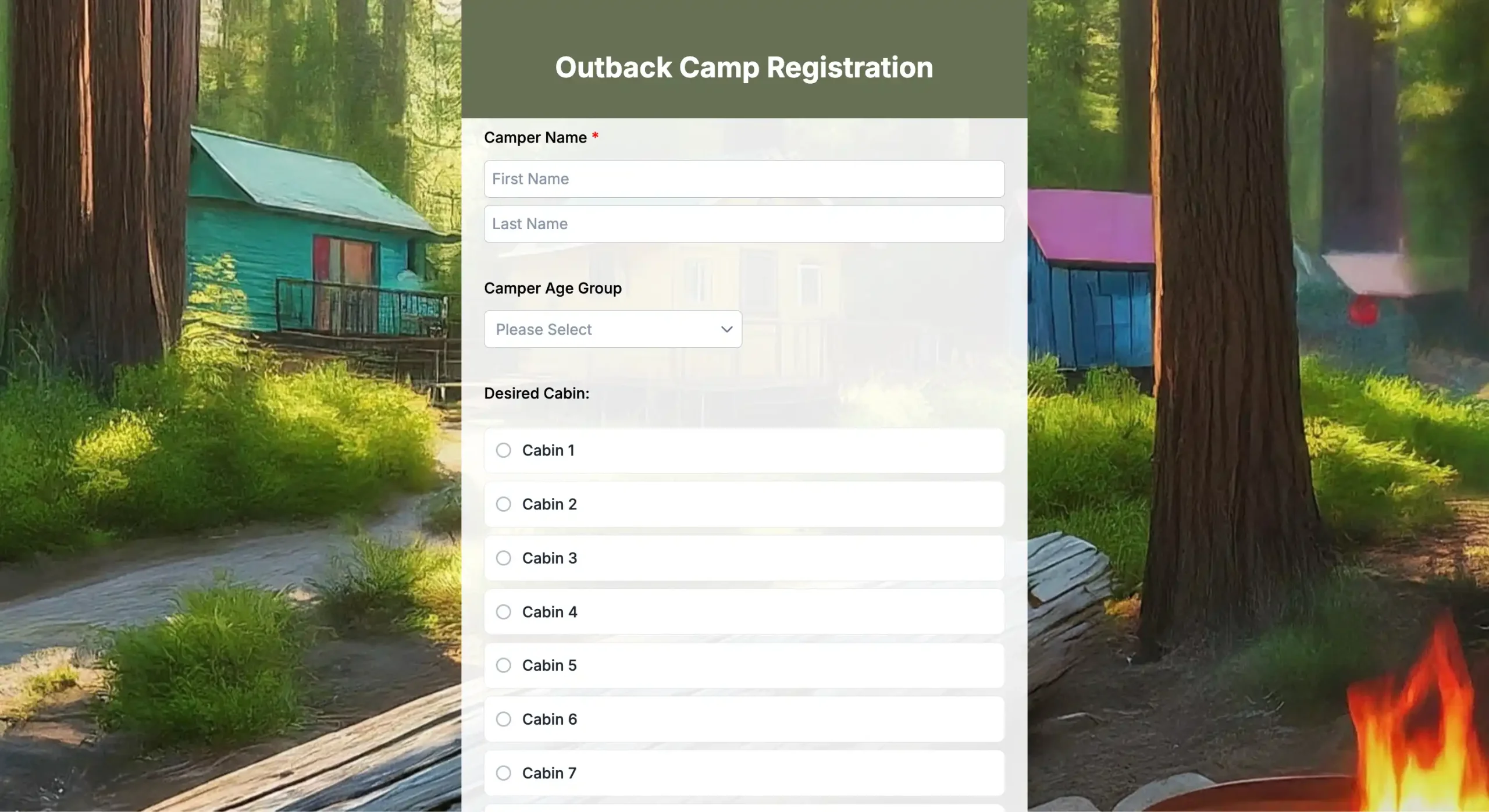

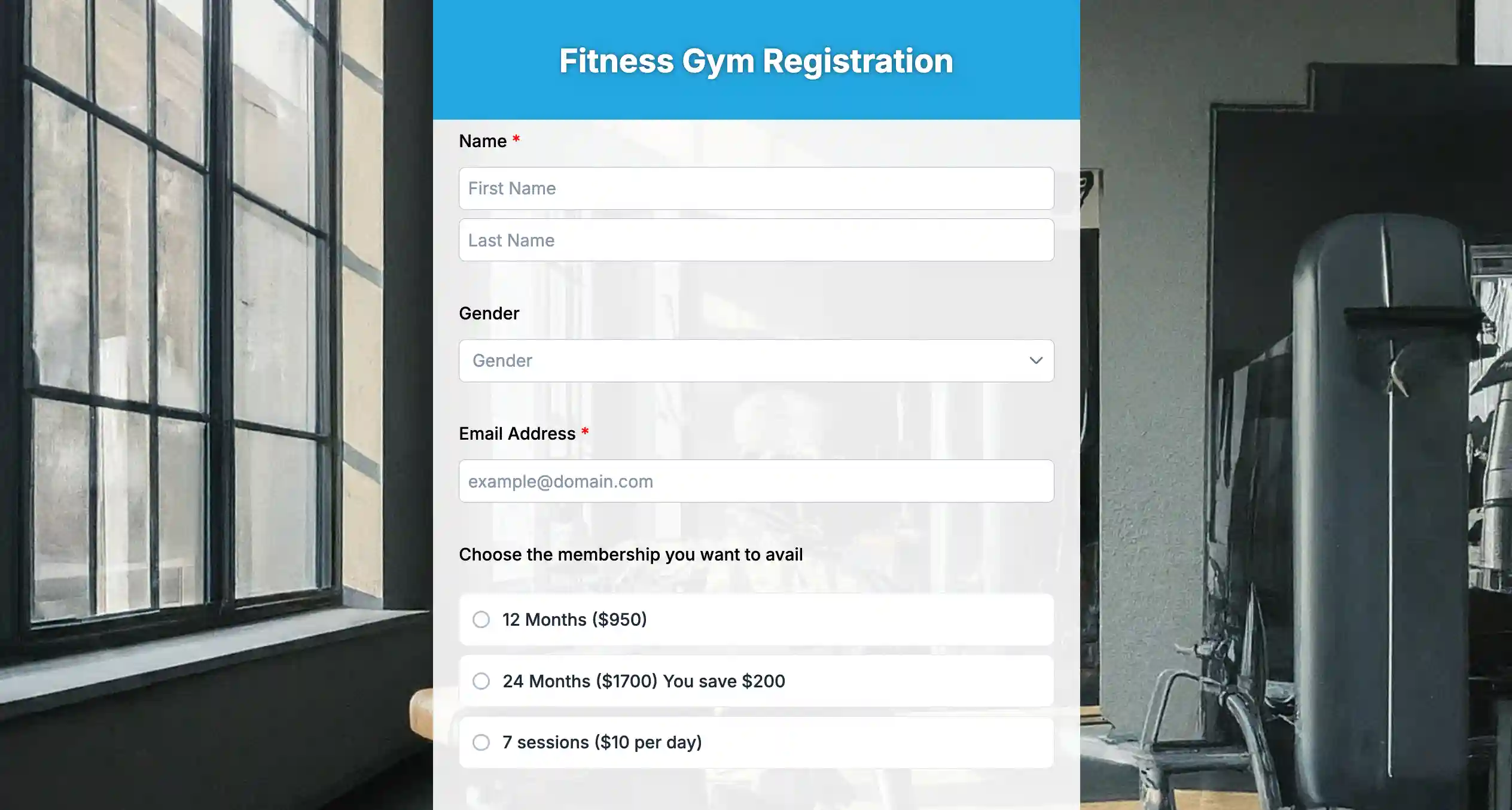
Sports registration forms
Help players and parents register faster with a sports registration form. Spend less time on paper forms but do online registrations.
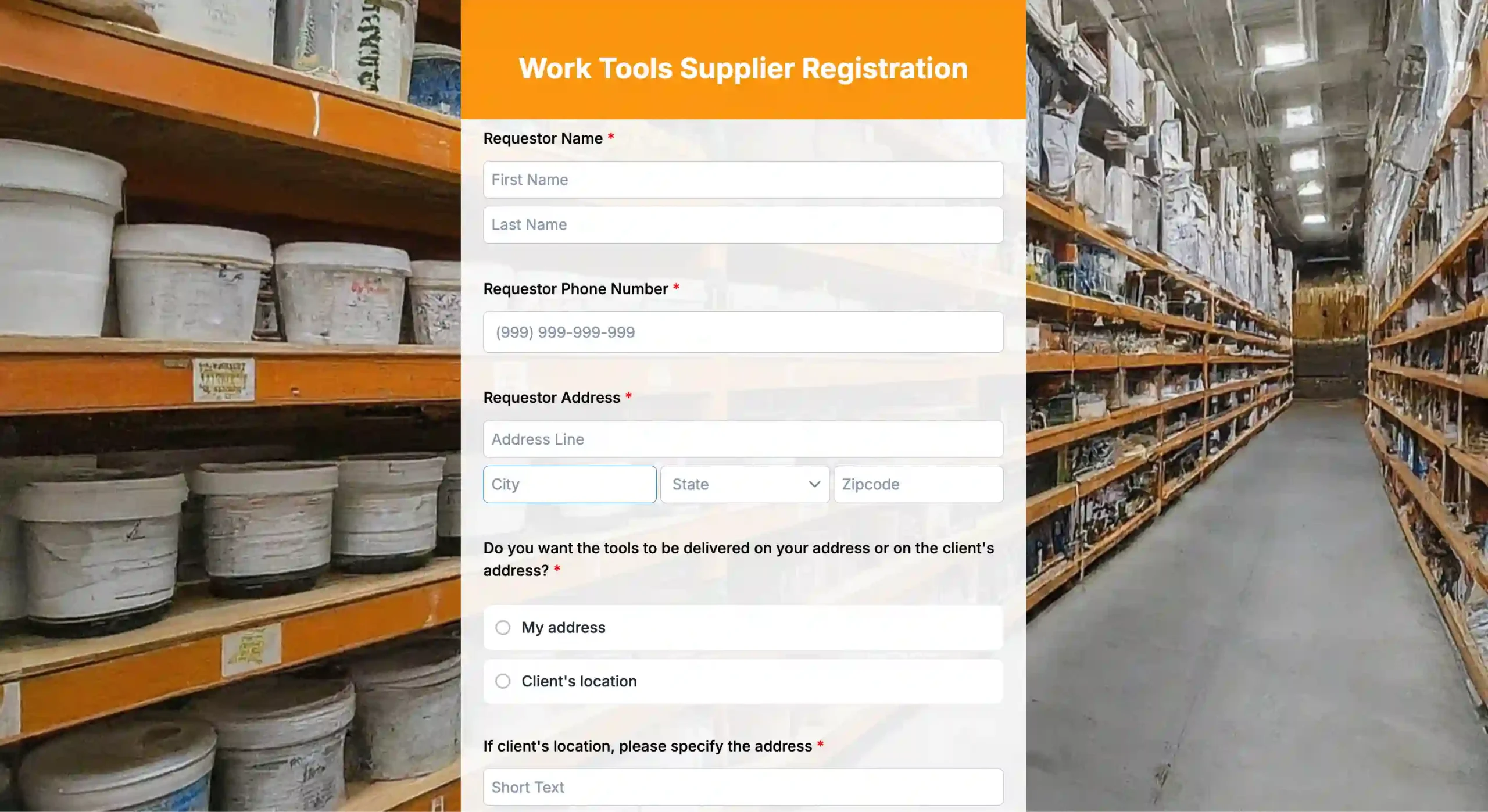
Pro tips for high-converting registration forms
1. Keep it “simple and quick.”
According to HubSpot studies, fewer form fields lead to higher conversions. Because sometimes teams prioritize lead capture over making registration easy, they forget that simpler ways lead to more conversions. Below are some details your team usually overlooks:
- Confirm password fields: Users often just copy and paste their password; in this instance, verification has failed. Instead of requiring two fields, allow them to view their password so they can confirm it easily.
- Split name fields: A full name field is usually enough. Separating first and last names can feel unnecessary and may slow users down.
- Unnecessary fields: Do you really need the “How did you hear about us?” or the company fields? Freelancers or solo users may feel excluded or confused and abandon the forms. So, collect the primary details first; you can always ask for more in follow-ups.
2. Use progress bars
If your form is long (like a medical history or a mortgage application), use a progress bar. Users have a psychological need for “closure.” When users see that they’re into 75% in finishing the form, they’re much more likely to complete your form.
3. Make mobile-friendly forms
Exploding Topics May 2025 data show that over 64.35% of web traffic comes from mobile phones. Do not let respondents do “pinch and zoom” just to find the submit button; this will make them quit your form.
Make sure your form tool uses responsive design so that no matter what device respondents use, your form adapts.
4. Enable “save and continue”
For complex registrations, life often gets in the way. The “Save and Continue” feature lets users start on their phone and finish on their laptop later without losing their progress. This simple addition can drastically reduce form abandonment.
5. Use personalized CTA
Insiteful shared that having “Submit” as your CTA button increases form abandonment by 3%, as it feels business-ish and distant. But HubSpot reports a 200% increase in conversions when personalized CTAs are used.
So, instead of a generic “Submit,” try “Join Us,” or “Get Started Now.” This small wording change makes it an invitation, not a cold transaction.
6. Include trust signals
IBM reports that data breaches cost about $4.88 million in 2024. Risk statements like this make users hesitate to share their personal details. To build security and credibility, qualify for SOC 2 Type 2, ISO 27001, or have compliance with GDPR & CCPA.
Part of this is to include trust signals near the submit button or a brief “We value your privacy” disclaimer. This way, users will feel confident sharing their information with you.

Upgrade your registration process with online sign-up forms
You don’t need coding skills to build a form that works. We have curated this guide on how to create registration forms to show that with the right digital tools and templates, you can create a form that’s simple, organized, and easy to manage.
Whether you’re registering students, event attendees, members, or new clients, the goal is the same: make it easy to fill out and easy to track. Now you know how to create a registration form, what fields to include, which tools to try, and how to improve it over time.
Start simple. Keep only what you need and use the tools you have. You don’t need to code at all. Just a clear plan and the right setup.
FAQs
Can I create a registration form without having a website?
Yes, most modern form builders allow you to generate a shareable link or QR code, so you don’t need a website to collect registrations. You can share the link via email, social media, messaging apps, or display the QR code at physical locations for walk-in sign-ups.
Can I accept payments through an online registration form?
Yes, many registration form builders integrate with payment processors like Stripe or PayPal. This is especially useful for paid events, course enrollments, membership sign-ups, and ticketed registrations. Payments are typically processed securely, and you can track both the registration and payment status in one place.
How do I prevent spam or fake registrations?
You can reduce spam by:
- Using required fields strategically
- Enabling CAPTCHA verification
- Adding email confirmation steps
- Limiting multiple submissions from the same device